A PDF manual can support text search, but the PDF label alone does not guarantee it. Before buying a long manual for quick reference, ask whether the exact supplied file has searchable text and test a permitted representative sample. A page that looks readable on screen can still be an image without searchable words.
Searchable text and a readable page are separate checks
Adobe’s text-recognition guidance explains that OCR can add a searchable text layer to an image-only scanned PDF. A scan may already have that layer. Looking at a page does not establish whether recognition has been applied or whether its words were recognized accurately.
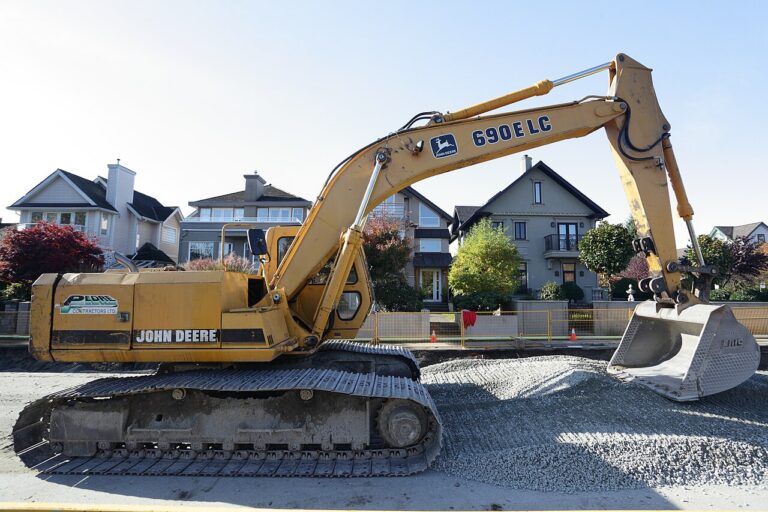
For example, AutoManual’s John Deere TM2102 listing identifies a 3,385-page PDF. We checked that catalog metadata on October 19, 2026; we have not opened or search-tested the supplied PDF. Its format and length leave searchability unverified. If finding terms quickly matters to your purchase, resolve that question separately.
Try a small test tied to the offered file
Ask for a permitted sample from the actual file being offered, with enough publication details to identify it. A screenshot or a different edition cannot demonstrate how that file’s text search behaves. Then try this limited check:
- Choose a word you can already see. Use an ordinary word in a paragraph on the sample page. Testing only an unfamiliar component term leaves you unsure whether the term was ever there.
- Search inside the opened PDF. In desktop Acrobat, use Ctrl+F on Windows or Command+F on macOS. Adobe’s Find documentation also describes case-sensitive and whole-word options; check those settings if the expected match is missing.
- Open the result and compare it with the page. Does it locate the visible word? If the sample includes several representative pages, repeat the check across them. Record the pages and viewer used.
A successful result establishes only that those tested words were found. It does not certify every page, small diagram label or section. If the test fails, ask the supplier to investigate the exact file and page rather than assuming that the manual omits the subject.
Ask a question the supplier can answer precisely
Try: “For [publication reference and issue], does the supplied PDF contain searchable text, including any scanned sections? Can you provide a permitted sample from that file? Please identify any sections with image-only pages or known recognition limitations. I tested [visible word] on [page] using [viewer], with [result].”
Keep the reply with your purchase notes. If no suitable sample or clear answer is available, searchability remains unverified; decide whether that uncertainty fits your intended use.
Treat OCR as a navigation aid
After delivery, retain the supplied original. If you have permission to process the document, OCR may help with image-only pages; check your software’s available features and the document’s terms first.
Adobe’s recognition-error guidance shows why review matters: uncertain recognized words can differ from the visible page image. Check a search hit against that original page before using it. Do not treat OCR output as verified technical data or guess an unclear symbol or value.
If a subject still cannot be found, navigate from the contents and inspect the relevant pages. Our missing-pages and readability checklist helps you describe a separate file-quality problem. Finding a word quickly leaves the document’s coverage and machine applicability to verify.